Rebecca

Sunday, October 3, 2010

Thing #12

     I looooove Google Apps!  They are always so easy to use and so applicable to everyday life and education.  I chose iGoogle Homepage and Google Calendar as my 2 apps to explore further.  Setting both of these apps up was really simple to do.

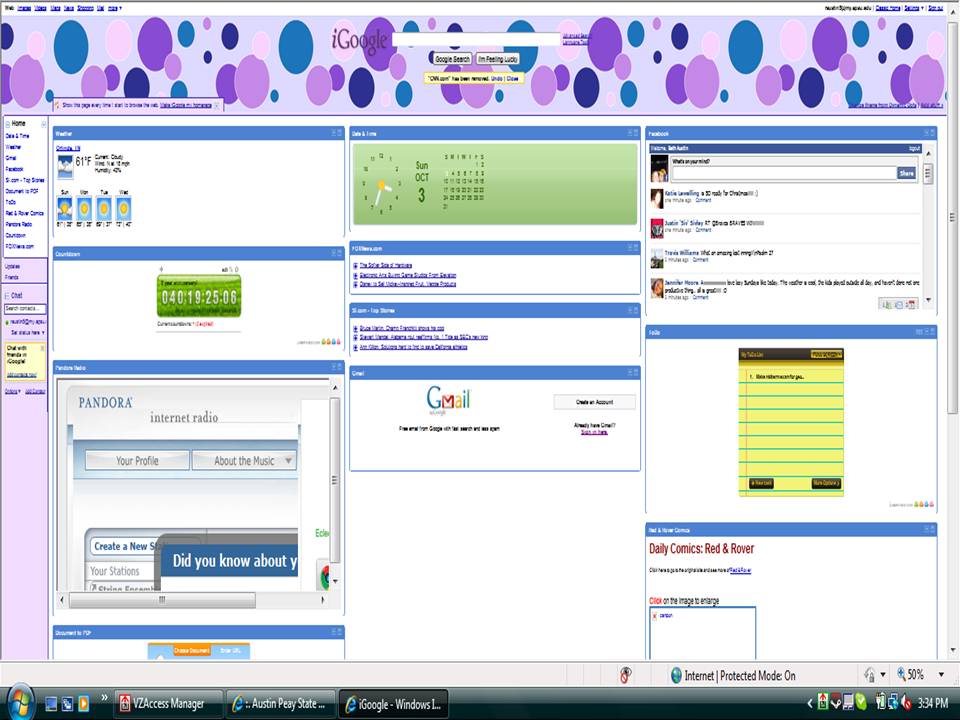
  • iGoogle Homepage--I have one of these on for my Gmail account.  I first set one up when they first came out with the idea.  I had long forgotten about it when I got this assignment, so I decided to take the opportunity to see how it had improved in the past few years.  Whoa, has it changed.  There were hundreds and hundreds of themes to choose from.  I chose a theme called Dynamic Dots.  It is multicolored polka dots.  I chose this theme because it was more professional than some of the others I liked (i.e. Princess Peach, Crayola Crayons, etc.).  Then I spent over an hour deciding what gadgets to add.  I finally decided on eleven.  Some of them are for practical purposes and some of them are for entertainment sake.
    • My 11 iGoogle Gadgets
      1. Weather
      2. Date & Time
      3. Facebook
      4. Countdown
      5. Fox News
      6. Sports Illustrated
      7. Pandora
      8. Gmail
      9. To Do List
      10. PDF Converter
      11. Red and Rover Comic
     Three of my favorite gadgets to have on my iGoogle page are Facebook, Pandora, and Gmail.  I use each of these daily.  I also added Sports Illustrated and Fox News so I can get news updates quickly.  I added Date & Time, Weather, Countdown, and To Do List to help keep me organized.  PDF Converter is something I need from time to time when sending or receivng documents.  And I added Red and Rover because it is my favorite comic strip.
 
     I can definitely see the benefits of using this in the classroom.  It would make my morning routine quick and efficient with all of my tools right at my hand.  Also, if sharing these iGoogle pages is possible, than I can share it with colleagues, parents, and even students.  They would be able to have these tools easily too.

Here is a picture of my iGoogle page (since I couldn't make it public).


  • I also chose Google Calendar to learn more about.  I set up a Google Calendar and placed three important dates on it.  I added mid-terms (which are this week )and fall break (which is next week--YAY!!!). 
    This tool is also easy to use and would be greatly beneficial around the school.  The calendar can be made public so departments, grade levels, or even the entire school could access all of the important dates of the school in one location.  Also, my students would be able to easily see when assignments were due and tests were scheduled. 


Click here to see my sample Google Calendar:  Austin Google Calendar

Thing #11

     I found that Google's Blog Search was the easiest to use.  It didn't have any advertisements or buttons to clutter up the page.  You can be very specific or very narrow with your search and get lots of hits to check.  However, I like that when I stumble upon a website that offers a RSS or a blog that I like, I can simply click the standard RSS button to add it.  My Google Reader helped make this process even easier because before it would be added among my favorites which gave me lots to search through, now my Google Reader organizes and shows me new reads.
     I thought that Syndic8.com was the most confusing of the searches for several reasons.  First, it did not look as professional and didn't have the search box in an eye-catching, top of the page, typical location.  Also, the "5 random syndicated feed" list does not apply to me because I want blogs to be sorted by topic or popularity. 
     I liked that Topix provided top news for your zip code, but it doesn't really have any strong information or anything that was of interest to me.
     I found Technorati to be very useful to me because it combines technology news with other popular news for the time.  Like mentioned above, my oddest finds were from Topix.  There were posts where people were searching for long-lost friends and other odd posts about a lost cat.
     I also love knowing what the orange RSS box means.  There are so many pages that I search daily or weekly.  It was a pain to have to go there to see if new things were posted.  Now, with one (sometimes 2 clicks) I can look in my Google Reader and catch the news quickly.

Thanks to this image, my news is a few clicks away!

Thing #10

This experience was definitely a new one!  I mean I always see those little orange boxes and RSS Feed, but never really knew what it was or why I would want to.  After this experience, I definitely see the benefits of it.  I created a GoogleReader (super easy like most Google Apps, btw).  The five feeds I subscribed to were: 
  • Thoughts--my friend Katelyn's blog that I read every time she posts.  I hated having to look and see if she posted something new so now my news feed can do that for me.
  • Mackenzie's Meanderings--a youth minister and close friend who blogs about everything from family to sports to Facebook to religion.  I also adore reading his stuff and had to rely on facebook posts to let me know he had updated.
  • Blessings for Bible School Teachers--a resource I use to help prepare for Sunday School.  Even though they haven't updated in a while, they have promised to do so soon.  Now I will know when new information is available.
  • Dangerously Irrelevant--this is a new read for me.  After Dr Wall suggested it, I took a look around and found lots of information I found useful.  I love how technology and education mix and this seems like the perfect place for me to learn.
  • McMama--I started reading McMama several years ago after a friend suggested it.  She posts fabulous pictures and suggestions on how to take pictures.  She also holds contests, shares information on raising kids, and provides humorous tales about her family.  She is one of the original creators of "Not Me Mondays".
I like RSS and and newsreaders because they provide all of your news and information in one place.  You don't have to rely on filtering through hundreds of favorites or google searches.  I can see it being even more valuable as I add other news that interest me such as FoxNews and ESPN.

In my personal life, I can already see the benefits.  As far as school goes, I am tempted to create a google reader for our entire social studies department.  We have Professional Learning Communities once a week.  A google reader would give us a good place to store all of our departmental news so that we would be able to easily access it when we had our meetings.

Teachers can also take advantage of RSS by adding news specific to their content area and making it public to their students.  The students will have the news right at their fingertips when writing journals or doing other assignments.

Thing #9

Image Generator #1 Dummiez Book Cover


How to Create It:  This generator was really easy to use.  The site takes you to a form.  You simply fill-in-the-blanks and click Change the Cover.  Then you can get the html code for it (this part was down) or save it to your hard drive. 


Negatives to this Generator:  You are limited on the number of characters on some parts.  That is why it says Freshie instead of Freshmen :)


How I Would Use It in the Classroom/Personally:  I can see myself using this generator to be the cover of their handbook for my classroom.  In this handbook I list rules, procedures, materials required, etc.  This was be a lighthearted way to introduce them to the course.


My Finished Product: 


Image Generator #2  Text Generator


How to Create It:  This generator is also really simple.  I first learned about it from one of our technology people in the county when she posted the link on her portaportal.  Simply click on the type of text you want to generate.  Type in your text, select your speed (if using a marque), color scheme, font, size, etc.  Then click on create codes and copy and paste. 


Negatives to this Generator:  None that I can see.


How I Would Use It in the Classroom/Personally:  I currently use this on my webpage to post a welcome sign.  After playing around with it today, I can see myself using it for announcements on the webpage and on over my projector and screen in class each day during the bellringer.   


My Finished Product: 

LCD Text Generator at TextSpace.net


Image Generator #2  Blabberize


How to Create It:   Blabberize is more difficult than the other two generators above, but is also a lot more fun!  The website gives step by step directions.  First, pick an image.  Second, place the mouth (this is the hardest part).  Third upload the audio.  It can be through a microphone, a download, or my favorite a cell phone.  Then play your image.  If you like what you see, then make an account, save it, and you can share it with your friends.


Negatives to this Generator:  Placing the mouth can be difficult and finding clips under 30 sec. can be hard.  I found a clip I liked that was too long and called in on my phone.  I played it over the speakerphone and it worked perfectly. 


How I Would Use It in the Classroom/Personally:  Students can do this in history with almost any character.  They can record themselves reading the speech or saying a famous quote.  They can also do reviews this way which would be beneficial to those students who get shy in front of a crowd. 


My Finished Product:
Abe Lincoln Blabberized

Saturday, October 2, 2010

Thing #8

Flickr and Flickr mashups can be highly beneficial in my room. For ways on how Flickr can be used in my classroom look at My Thing #6. I found 2 Flickr Mashups that I know would be great in my room.


First, Bubblr is a tool that uses images from Flickr to create comic strips.  I made one of a "Journey to France" shown above.  It's really easy to use.  All you have to do is search for images from Flickr using the search box at the top of the page.  Click on the image you like.  Then select one of three bubble styles to type in.  I can see this definitely being used on different regions that we study in World Geography.


1. Father Evens Likes my Ladies, 2. Veterans at Their Memorial, 3. Eclipse, 4. Mother and Child, 5. Harpist Angel, 6. No, 7. After the Storm, 8. By the Cross, 9. Paris, 10. Untitled, 11. Untitled, 12. Fort Chapus, 13. Untitled, 14. Napoli 271, 15. Napoli 285, 16. Napoli 284, 17. Napoli 286, 18. Napoli 281, 19. Napoli 277, 20. Napoli 280, 21. Napoli 272, 22. Napoli 274, 23. Napoli 278, 24. Napoli 282, 25. Napoli 279


Second, Mosaic Maker, would also be beneficial in my World Geography classroom.  Students often do research projects for me that include writing.  This would be a nice tool to let them add images to their written work.  Additionally, I like that Mosaic Maker does the hard work of crediting the photographers of the original pictures for you.  The only thing I didn't like about this tool is that you have to be very specific with your searches to get what you want because otherwise you can get pictures that are pointless.


Like I mentioned in Thing #6, you have to be careful when posting pictures online because of security measures.  Also, the filters at school would make searching for pictures either difficult or allow them to view pictures that are not appropriate.  Within reason, however, I feel that both of these tools could be very beneficial.

Thing #7


vols1
Originally uploaded by RAustinAPSU


I loved using Flickr for this assignment!  I uploaded this picture because it is one of my favorite pictures.  It reminds me of a special trip with a special person.  It was easier than I expected to upload this picture directly through the blogger tool on Flickr.  Once I read the directions twice, it took just a few clicks, and it was done.  I have used Flikr before.  Never for my own photos, but for looking at a friend who is a professional photographer and for general searches for images.  I can see myself using Flickr in my classroom within reason.  I have to first check all student data sheets to make sure students have permission to have their picture posted.  It would be a great tool for sharing special events, productions, projects, field trips, etc.  I can definitely see myself using it for personal images, especially when I have kids.  It would easy for family and friends to see special stages of my child's life through this site.  I currently use another photo hosting site called Shutterfly.  I set up an account for school pictures where parents have to have a code to see the images so they are private to the public.  Both Shutterfly and Flikr seem like good photohosting tools.  Both are more professional in appearance than photobucket.  I'm not a big fan of my face being public to all Internet searches.  I especially don't like posting pictures of my students to the public since some of them come from family situations where this could be harmful.  That is one reason I prefer Shutterfly's ability to provide a code for viewing.  Through exploration, I learned that Flikr has this same tool.

Thing #6

     After browsing the Web 2.0 tools, I chose Evernote for several reasons.  One reason is because it was one I had never heard of and wanted to learn more about.  Second, I chose it because it seemed like a tool that an educator could definitely use in the classroom from the word "note".
    I explored the Evernote site and did several Google searches (Google Search).  I learned lots of interesting things about Evernote.  After my research I compiled my own list of pros and cons using information both from the Evernote site and my own searches.
Pros and Cons to Evernote
Pros
  1. There is a free version!
  2. The premium package is affordable ($5 a month, $45 a year).
  3. You can take notes, screenshots, images, saved web pages, etc. and save them in the folder.
  4. You can access it from anywhere you have the program downloaded.
  5. Macs and PC's can use it.
Cons
  1. Some parts of it can be difficult to use if you are not computer savvy.
  2. Folders can get cluttered if not careful.
  3. Collaboration is only available in the premium package.
  4. Older phones can't use it (but almost any smart phone can).
This site is very useful because the user can store documents, images, screenshots, notes, etc. and open them from any location. 

I can see this being very beneficial, especially in a secondary or college setting.  Students would be able to store documents, etc. to their Evernote account from their home computer and open them from school.  This would prevent a problem we often have at our school where viruses are shared from student personal email accounts and USB drives.